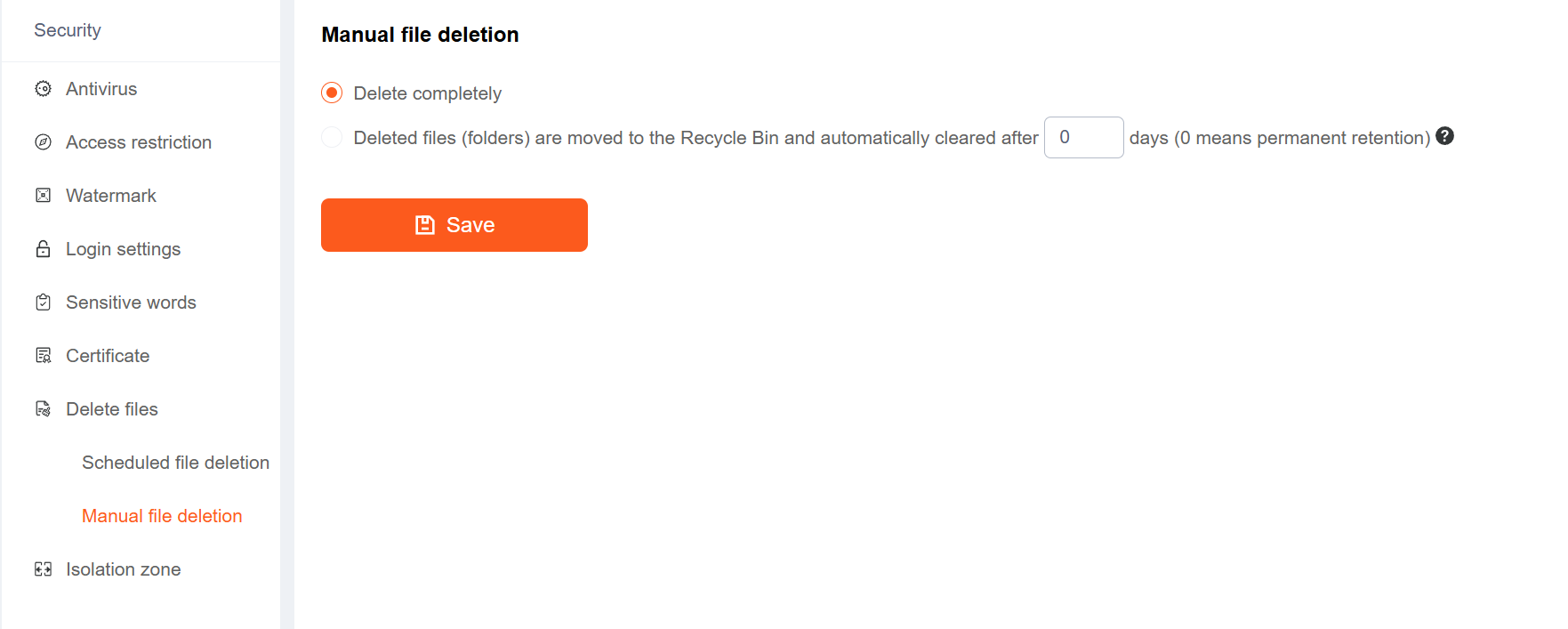
1. Antivirus
Support antivirus after uploading files. Raysync mainly uses ClamAV (Clam AntiVirus) virus scanning tool to scan the uploaded files and will move the infected files to Isolation Zone.
Click Security - Antivirus to enable the antivirus configuration. Restart the Raysync server for changes to take effect.
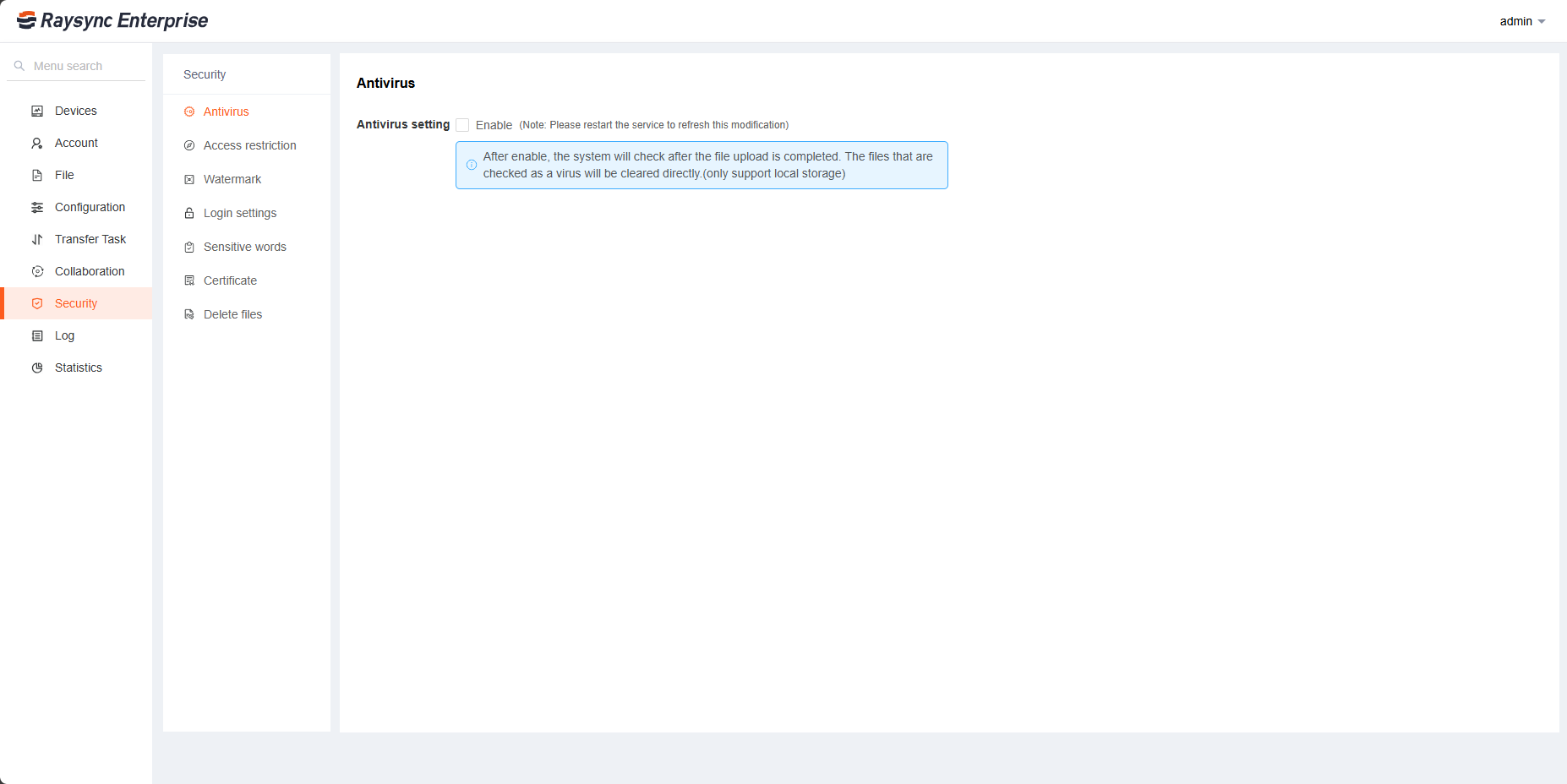
2. Access Restrictions
Used for foreground user login restrictions. Set a white list, the IP addresses in the white list are allowed to log in to the front desk; set a black list, the IP addresses in the black list cannot log in to the front desk. Click Security - Access Restriction, select whitelist or blacklist, enter ip or ip range (such as 10.80.90.1-100), and click Save to take effect.
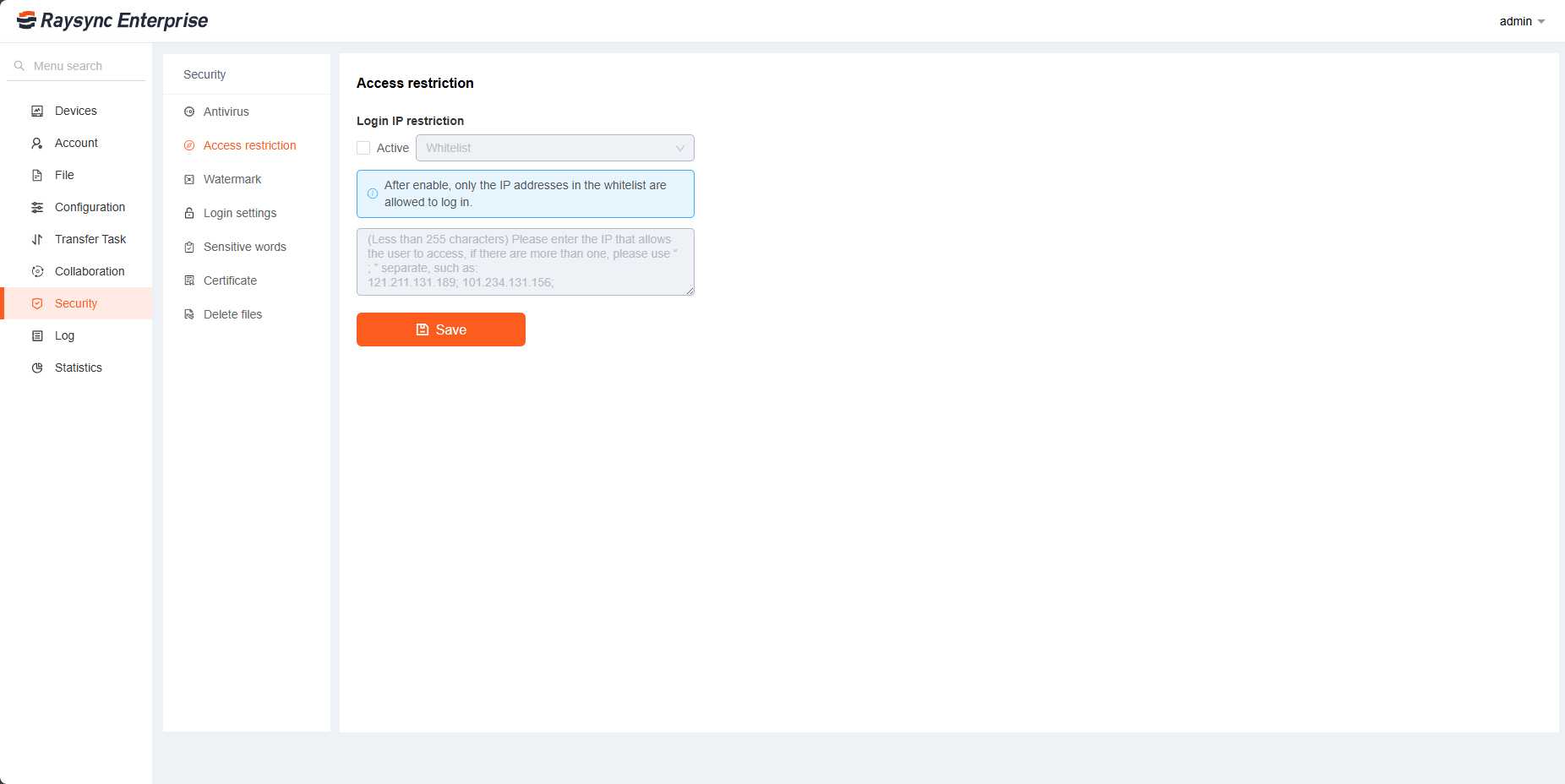
3. Watermark Settings
Used to configure video online preview watermark configuration. Click Enable watermark, upload the watermark image, select the location, and click Save.
4. Login Settings
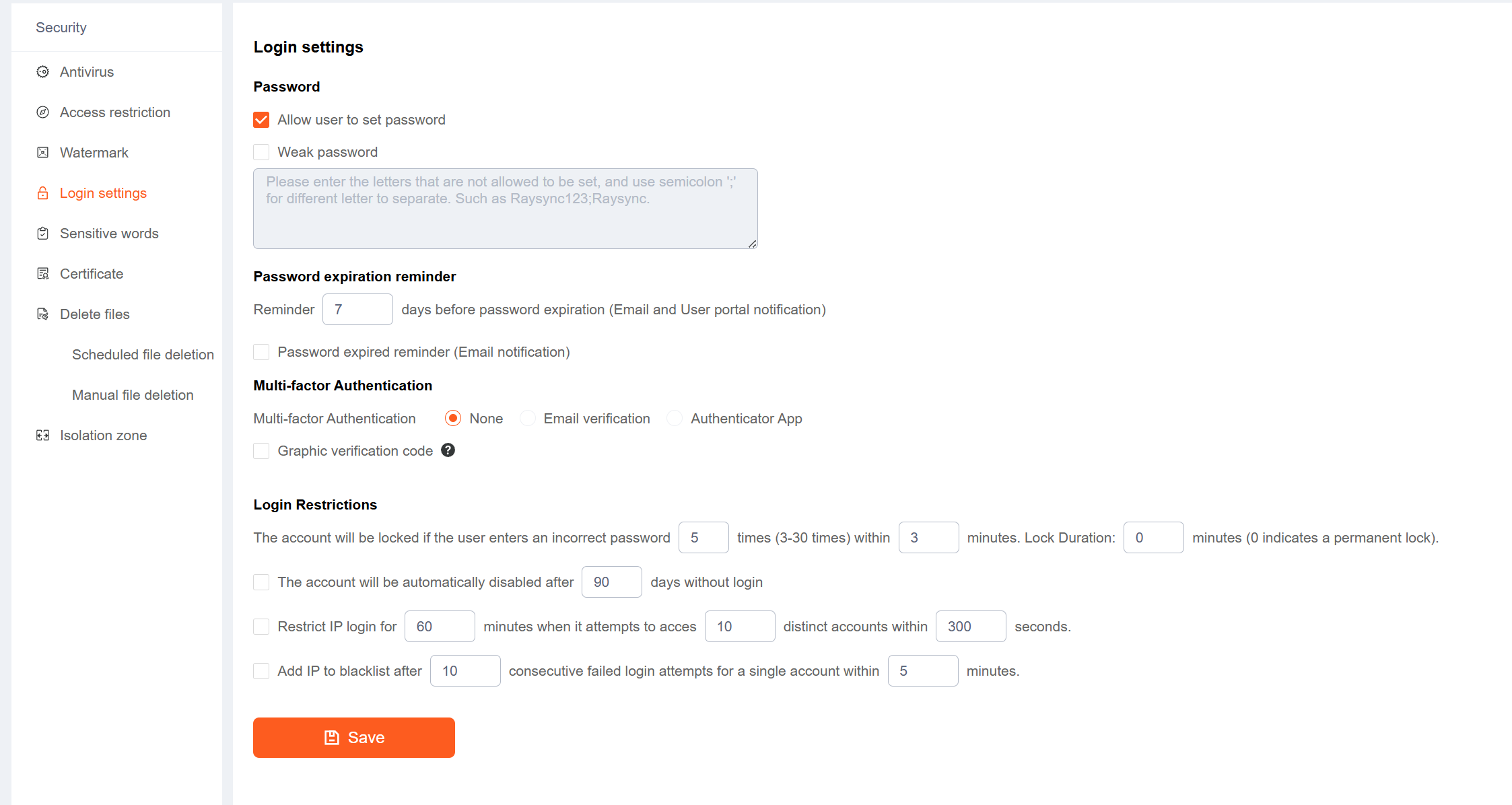
It supports administrators to configure whether to allow users to modify passwords, account lockout rules, Multi-factor Authentication and weak password settings.
| Functions | Description |
|---|---|
| Anti-brute force attacking | You can configure the user password to lock the account after X consecutive wrong input within X minutes, and the number of wrong input is 3~30 times. After the configuration is saved, it will take effect. |
| Allow users to change their passwords | If selected, the front-end users can change their passwords in the front-end, and the button to change the password is displayed in the foreground. If not selected, it will not be displayed. |
| Weak password settings | Passwords that users are not allowed to set, please use“ ; ”to separate multiple passwords, such as Raysync;raysync. After the configuration is saved, it will take effect. |
| Multi-factor Authentication |
You can ignore the admin's two-facotr verification by modifying the value of the field "block_super_administrator_login_email_verify" or "block_super_administrator_login_totp_verify" to 1 in the Raysync Server's config/config.ini.
|
| Graphic verification code | When enabled, you need to enter a graphic verification code each time you log in to the User portal or links |
| Login Restrictions |
|
6. Sensitive words
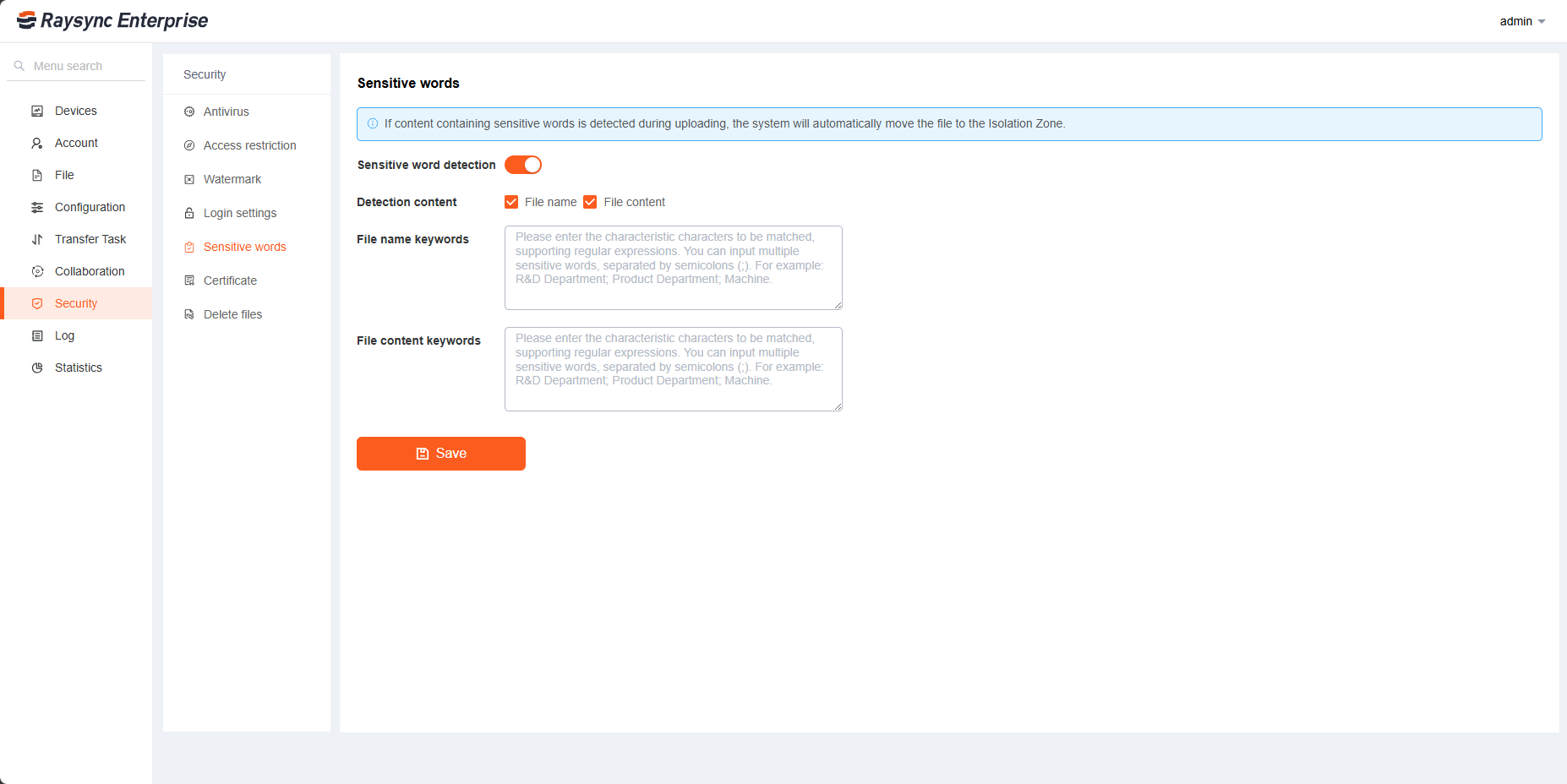
During the transmission process, the content of the file name and text file can be detected. The content of the file contains sensitive words. The system will automatically allocate the file to the isolation area.
If you need to detect the sensitive word like "kill", the input box inputs the sensitive word "kill", click [Save] and then enable
Multiple sensitive words are separated by ;

7. Certificate Management
7.1 TLS certificates
Raysync provides encrypted certificate services that can be used for both HTTP encryption of the web and file transfer encryption. The default is to use Raysync's own encryption certificate, or you can use the your own certificate for encryption. Fill in the correct certificate file and certificate private key, click Start Upload, and restart the server to take effect
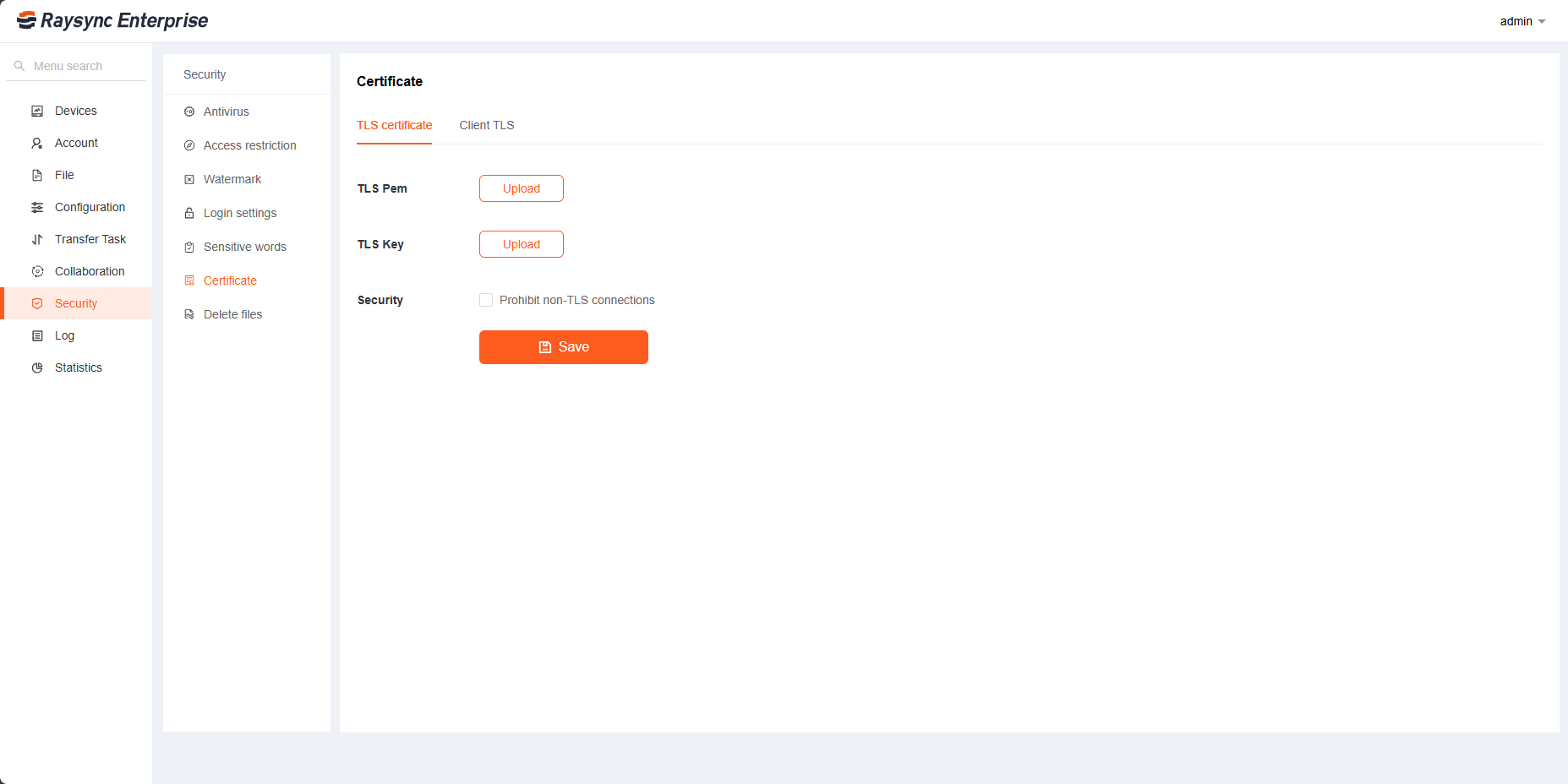
If you select Prohibit non-SSL connections, the front-end user pages cannot be accessed using non-encrypted HTTP addresses. Note: The premise of configuring security settings is that the administrator needs to upload a valid TLS certificate.
7.2 Client certificates
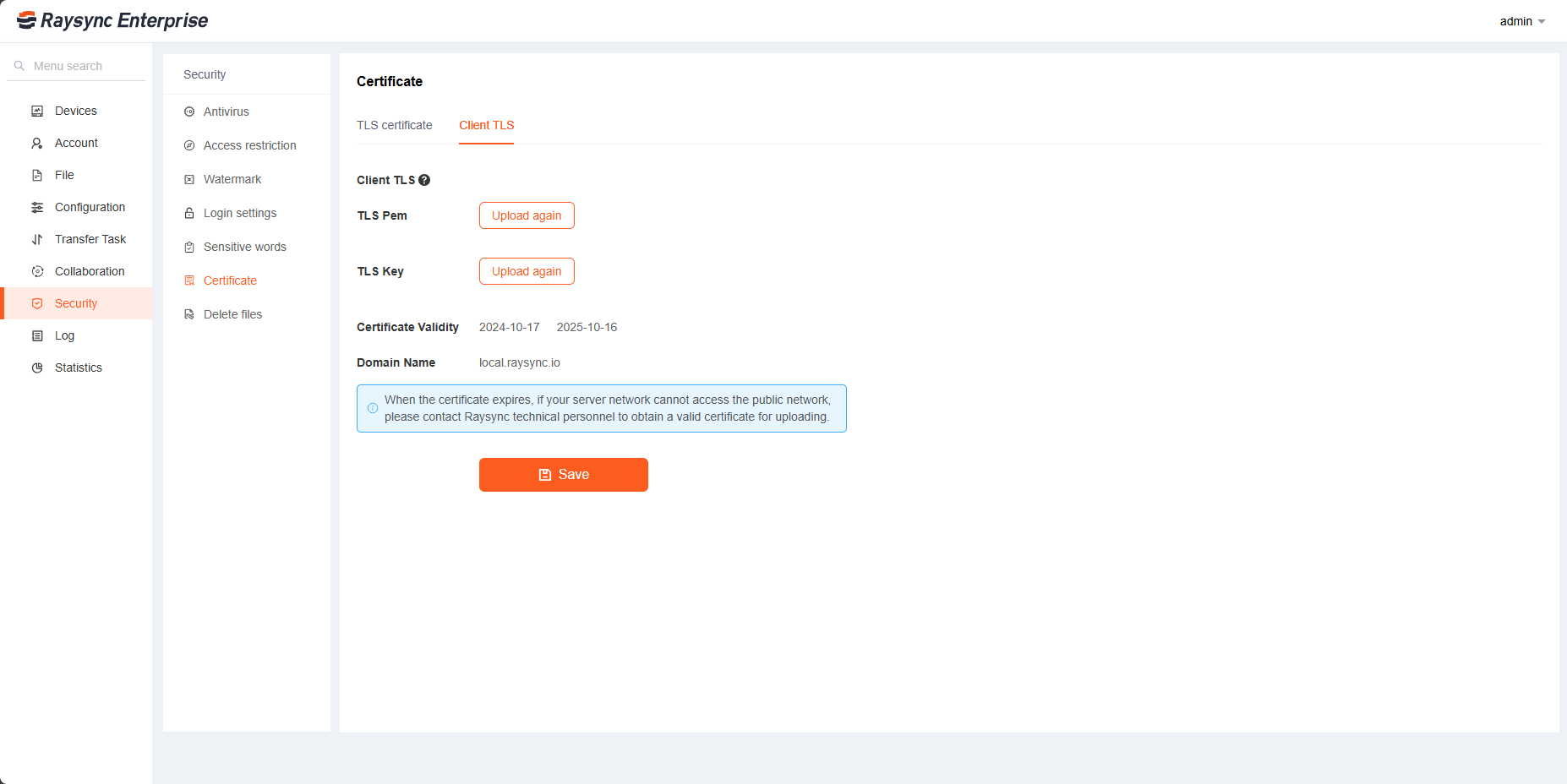
The client certificate used to establish an encrypted connection between the plugin and the browser. The Raysync server comes with this certificate. For online services, this certificate is automatically updated annually. For offline services, when the client certificate expires, you need to upload a new one. Support for uploading your own certificate. After uploading the new certificate, the user needs to exit the plugin Client and restart it on the Web for the changes to take effect.
8. Delete files
8.1 Scheduled file deletion
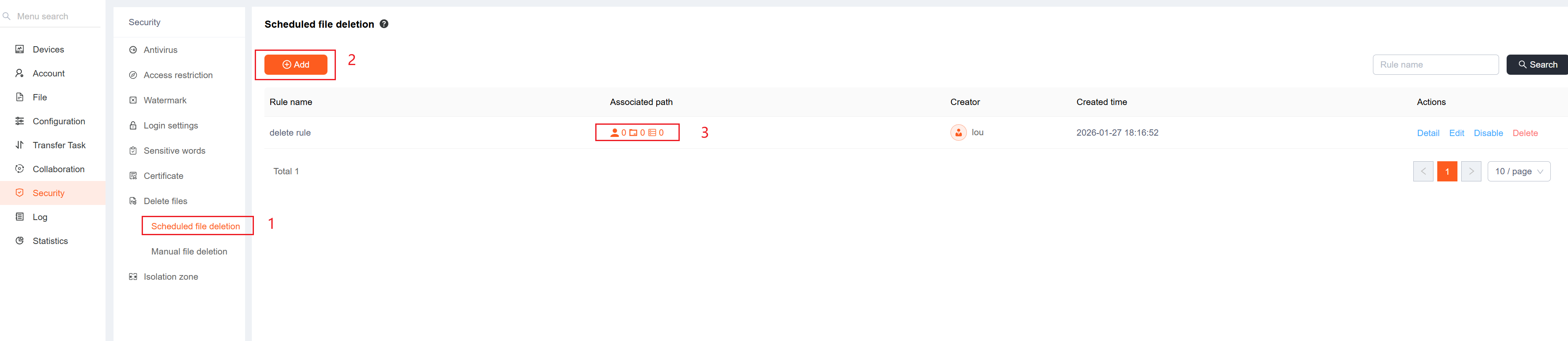
You can create scheduled file deletion rules. Click 【Scheduled file deletion】-【Add】 to set your file deletion rule, click 【Save】, then click 【Associated path】, select the path you want to delete, and click 【Save】. When the system triggers the conditions of this deletion rule, it will automatically delete the files in the path you selected or move them to the recycle bin. It only supports local storages.
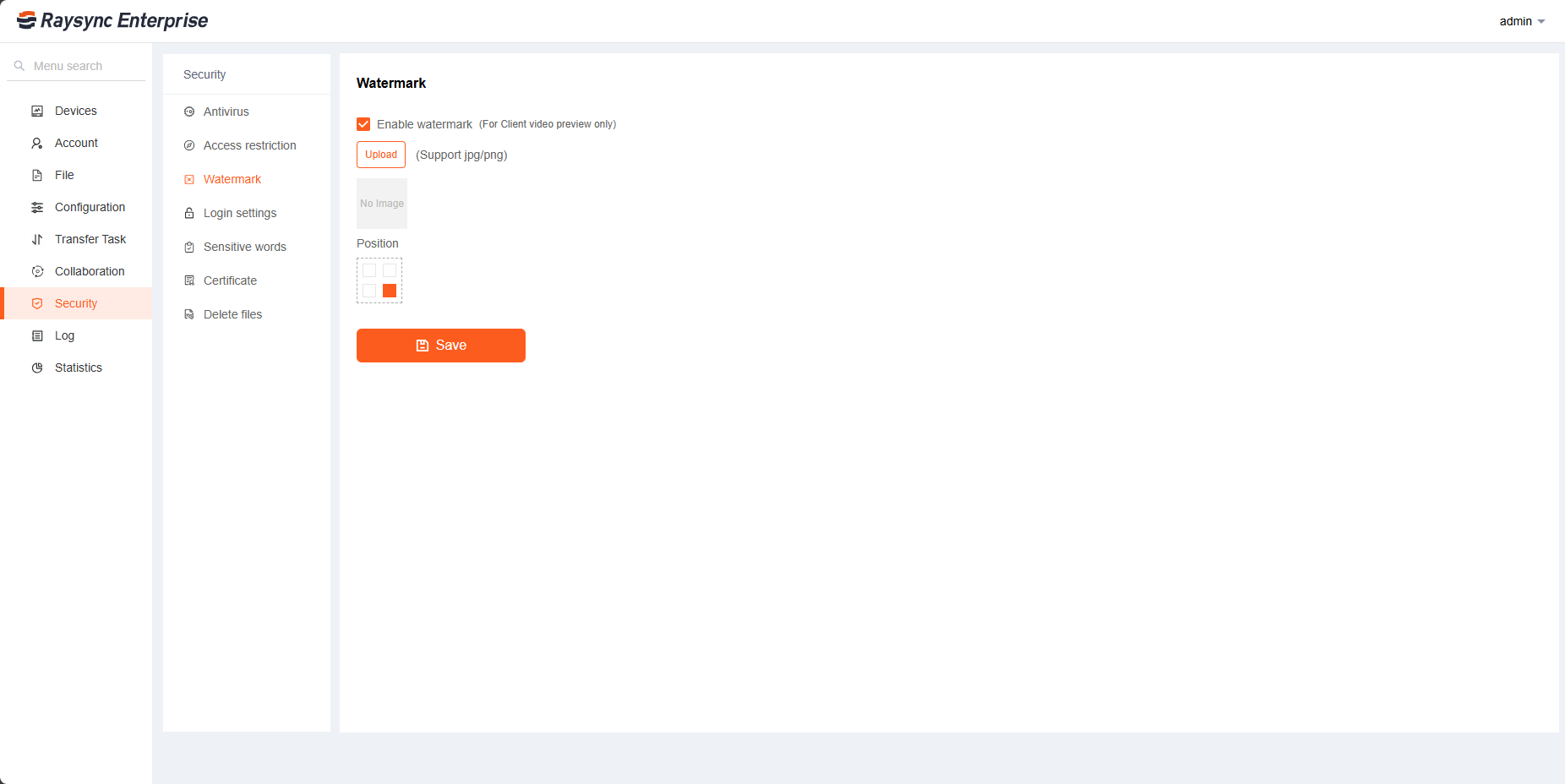
8.2 Manual file deletion
The files that the user manually deletes, you can choose to delete them directly, or first move them to the recycle bin before deleting them.