Multi-Storage File Transfer: How Raysync Unifies Cloud, Object and Local Storage With Virtual Paths
October 19, 2026
Your render files sit on a NAS in one office. Finished deliverables land in an Amazon S3 bucket. The finance team archives to Azure Blob, and last year's acquisition brought a Google Cloud Storage project nobody has migrated. Every one of those locations has its own console, its own credentials and its own idea of what a folder is. Multi-storage file transfer fixes that by letting one transfer platform reach all of them through a single login and a single folder tree.
Many traditional file transfer tools were built for one storage location: one server, one root path, one backend. That model breaks the moment your data lives in two clouds and a data center — which, for most enterprises, it already does. Users end up juggling tools, IT ends up issuing cloud keys to people who should never hold them, and nobody has one place to see or control what moves.
This guide explains how multi-storage file transfer works, how Raysync's virtual path architecture maps local, cloud and S3-compatible storage into one logical directory tree, how to set it up in five steps, and what to check before you roll it out.
Key takeaways
• Multi-storage file transfer lets users upload, download and manage files across several storage backends from one interface and one login.
• Raysync does it with virtual paths: logical folders such as /aws or /azure that the server maps to a configured storage resource.
• Supported backends include local storage, Amazon S3, Azure Blob Storage, Google Cloud Storage and S3-compatible storage such as Backblaze B2, Wasabi and Ceph.
• Storage credentials stay on the server, so users don't need bucket names, endpoints or access keys.
• Adding a new backend means adding one storage entry and one virtual directory — the user experience does not change.
What is multi-storage file transfer?
Multi-storage file transfer is the ability to move and manage files across several different storage systems — local disks, NAS, public cloud buckets and S3-compatible object storage — from one transfer platform, without users switching tools or handling each system's credentials.
It differs from two things it is often confused with. Cloud-to-cloud migration tools copy data from one provider to another in bulk, usually once. Multi-cloud sync keeps replicas aligned on a schedule. Multi-storage file transfer is about everyday access: one namespace in which people and workflows can reach whichever backend holds the file they need, under one set of permissions and one audit trail.
For IT teams running managed file transfer, this is increasingly a baseline requirement rather than a nice-to-have, because the storage underneath the transfer layer has stopped being a single system.
Why do enterprises end up with data in so many storage systems?
Enterprises accumulate storage backends through cloud adoption, acquisitions and team-by-team purchasing, so most now run hybrid estates that span more than one cloud.
Flexera's 2026 State of the Cloud Report, based on a survey of 753 cloud decision-makers and published on 18 March 2026, found that 73% of organizations operate hybrid environments. AWS (83%) was "slightly ahead of Azure (79%) for active enterprise workloads", and Flexera notes that multi-cloud adoption "continues to rise—often driven by mergers, SaaS sprawl and decentralized teams."
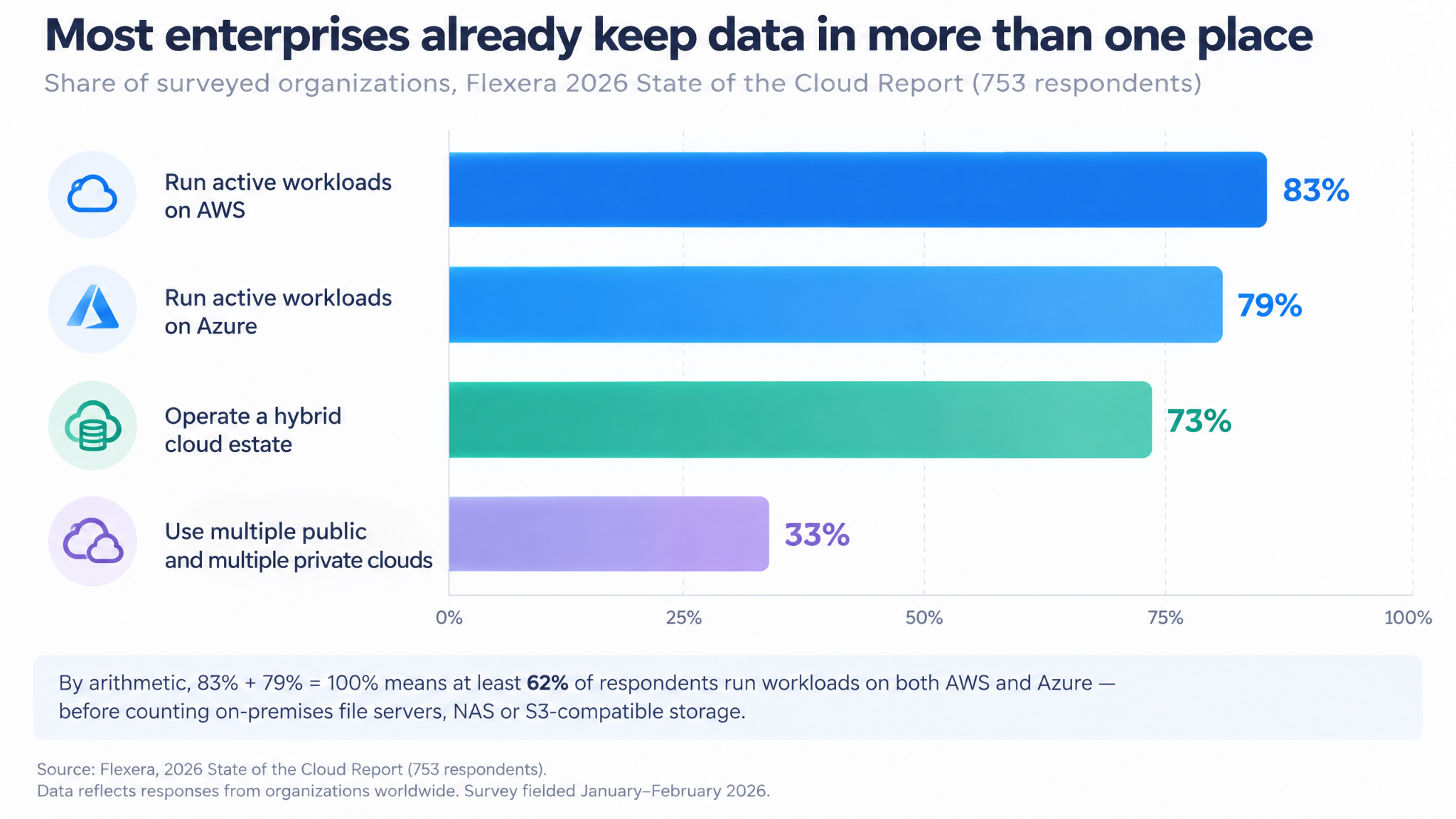
Figure 1: Hybrid and multi-cloud use in 2026. If 83% run workloads on AWS and 79% on Azure, at least 62% of respondents must be using both. Source: Flexera, March 2026.
That mix creates three recurring problems for teams that move files:
1. Tool sprawl. Each backend comes with its own console, client or command-line tool. Users learn several, and support teams troubleshoot all of them.
2. Credential sprawl. Giving users direct access to a bucket usually means giving them a key for it. Every key handed out is one more to rotate and revoke.
3. No single view. When transfers happen in five places, there is no one log that shows who moved what, where, and when.
A single-storage transfer server cannot solve any of these, because it can only see one backend. The fix is a layer that sits above the storage and presents it as one tree.
What is a virtual path, and how does it work in Raysync?
A virtual path is a logical folder that users see and work in, which the Raysync server maps to a real storage location — a bucket, a container or a directory — behind the scenes.
Raysync separates what users see from where files actually live. The server exposes a logical root, /. Administrators create virtual directories under that root and bind each one to a configured storage resource. When a user opens a virtual directory, the server looks up the storage it is bound to, uses the credentials stored for that storage, reads the real path and returns the file listing. Because the mapping lives on the server, changing where a virtual directory points does not require reconfiguring the user's client.
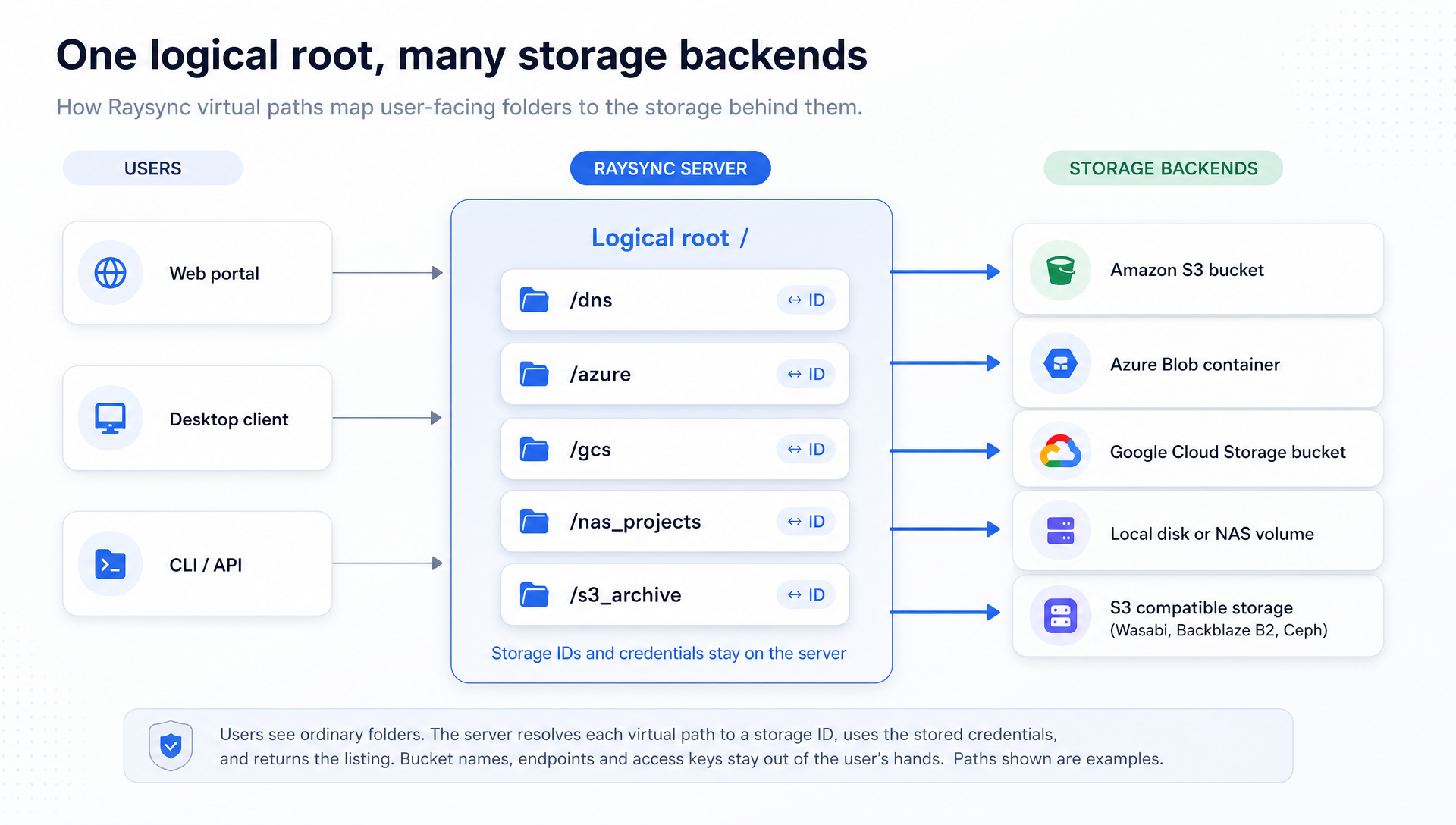
Figure 2: How Raysync virtual paths deliver multi-storage file transfer by mapping user-facing folders to storage backends. Paths are examples; administrators choose their own names.
A typical mapping looks like this:
|
Virtual path the user sees |
Backend it points to |
Why it helps |
|
/aws |
An Amazon S3 bucket |
Users don't see the bucket name or region |
|
/azure |
An Azure Blob Storage container |
No Azure portal account needed for day-to-day transfers |
|
/gcs |
A Google Cloud Storage bucket |
Acquired or project data stays in place, reachable immediately |
|
/nas_projects |
A local disk or NAS volume on the server |
On-premises working files sit beside cloud folders |
|
/s3_archive |
S3-compatible storage (e.g. Wasabi, Backblaze B2, Ceph) |
Lower-cost or private object storage without a separate tool |
To the user, all five are ordinary folders. They can browse, upload, download and manage files within the permissions an administrator grants. Behind the scenes, Raysync routes every operation to the right backend.
How do you set up multi-storage file transfer in Raysync?
You add each storage backend in the admin portal, then create virtual directories that bind a user-facing path to each storage, and users see those paths as folders when they sign in. The steps below follow Raysync's admin documentation; menu names can vary slightly between versions.
Step 1: Add each storage backend in the admin portal
In the admin portal's storage configuration, administrators add every backend Raysync should reach. The platform supports adding multiple storage types at the same time, including Amazon S3, S3-compatible storage, Azure Blob and Google Cloud, alongside local storage.
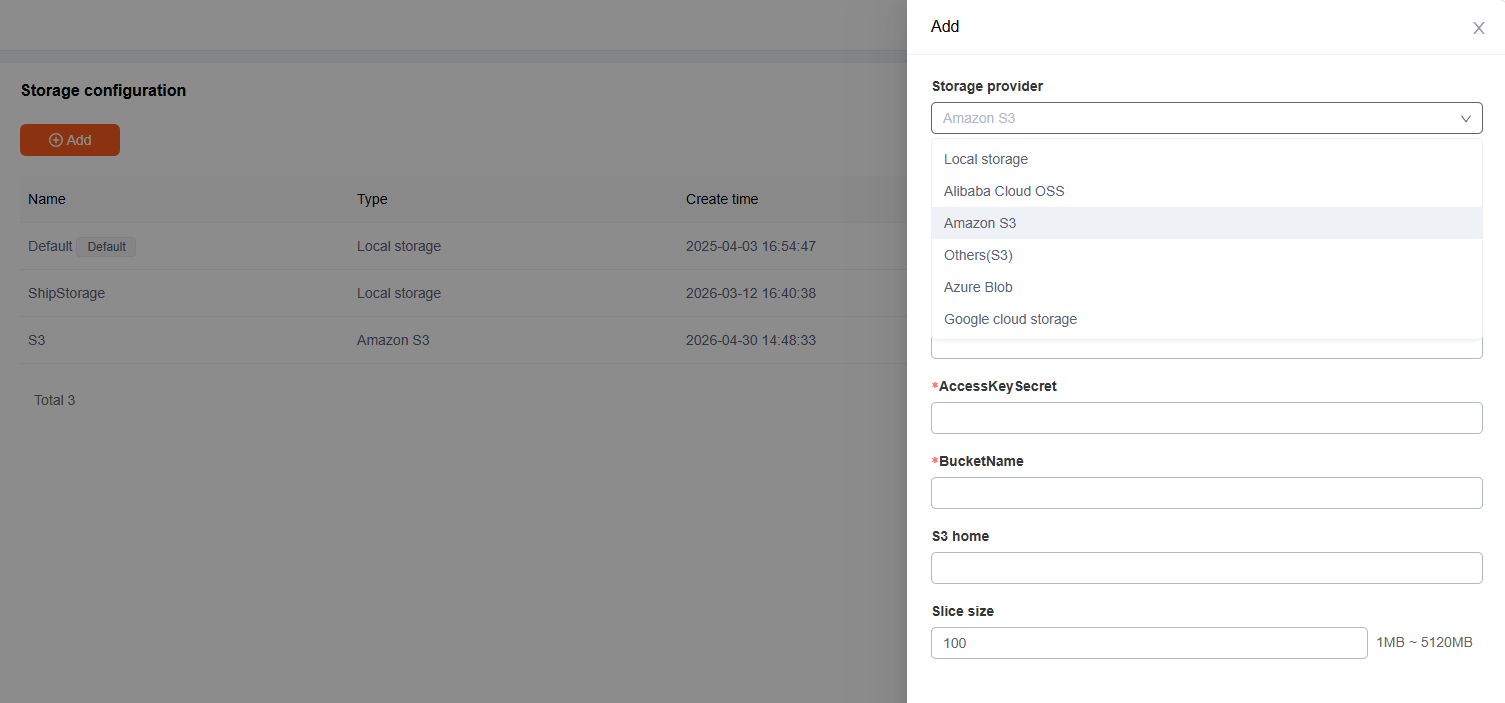
Figure 3: Adding a storage provider in the Raysync admin portal.
What each type needs:
• Local storage: a storage name and a storage path. Raysync can also clean up local files on a schedule, based on modification or access time.
• Amazon S3, Azure Blob and other cloud providers: the provider's access credentials, a storage name and, optionally, a storage path.
• Google Cloud Storage: the same details, plus an uploaded credential file.
• S3-compatible storage: an endpoint as well as credentials. Raysync's docs list Backblaze B2 Cloud Storage, Wasabi and Ceph Object Storage as supported examples.
Click Test before Save. If the test passes, the configuration information is correct, so a mistyped key is caught before any user hits it.
Step 2: Use the logical root / as the single entry point
Raysync presents a logical root path, /, as the top of every user's view. This root is not tied to any one disk or bucket. It is the layer under which virtual directories are mounted, so / can show /aws, /azure and /nas_projects side by side even though each lives somewhere different.
Step 3: Create virtual directories and bind them to storage
In each user's settings, the administrator sets a home directory and adds one or more virtual directories. You can read it in Raysync's Local User documentation, each virtual directory has two parts: an alias, based on a path under the user's home directory, and a path based on a valid path to virtual storage.
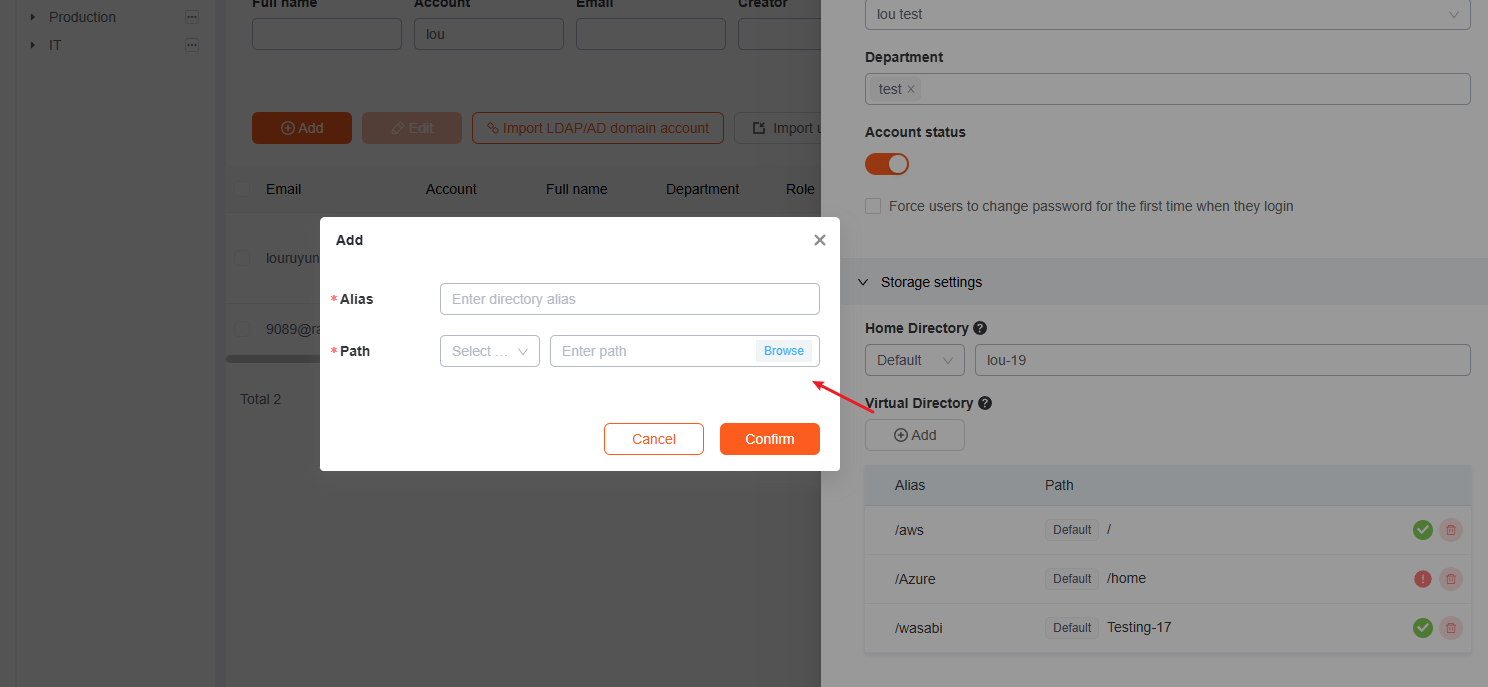
Figure 4: Binding virtual directory aliases to storage in a Raysync user profile.
This is also where access control lives. Administrators can set allowed paths, so users "can only see the set path", or disabled paths, where users cannot create, delete, rename, copy, move, upload or download. A storage cap can limit how much a user stores in a space.
Step 4: Users browse virtual paths from the client or web portal
When a user signs in and opens /, the server returns every virtual directory assigned to them. They do not need the real bucket name, cloud endpoint, access key or physical path — only the folder names an administrator chose.
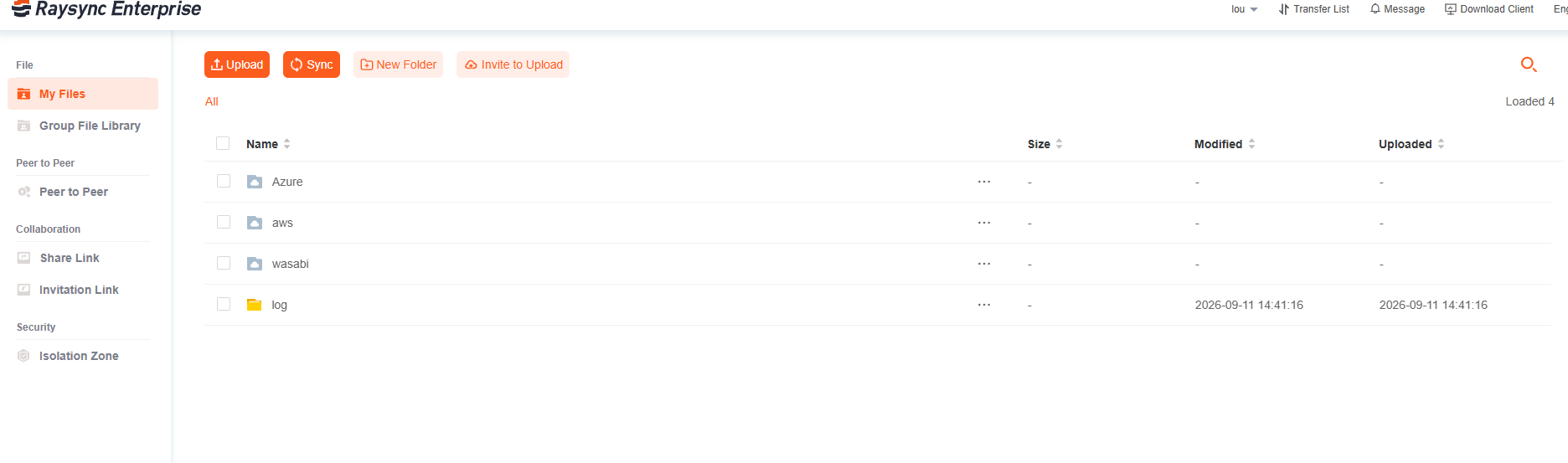
Figure 5: Virtual directories appear as ordinary folders in the Raysync Enterprise interface.
Step 5: Users transfer and manage files within their permissions
Inside each virtual directory, users work as they would in any folder, limited by the permissions set for them. Raysync's permission set covers file-list viewing, download, delete, rename, create folders, upload, sync folders, move, copy, invite and share. Raysync's command line also accepts object storage paths directly, a capability added in version 6.5.8.0, which helps when scripts or scheduled jobs need to reach a bucket.
How does Raysync compare with other multi-storage file transfer approaches?
Several file transfer products present multiple storage locations as folders; they differ in how many kinds of backend they reach, where they run and what transfer engine moves the data.
The idea is not unique to Raysync, which is a good sign: it is a widely used pattern for storage sprawl. Accelerated-transfer vendors such as Signiant have marketed support for AWS, Azure, Google Cloud and Wasabi storage since at least 2022, and MFT and SFTP products use the same folder-mapping pattern. Here is how four implementations compare:
|
Approach |
Storage it can map into one tree |
How users see it |
Transfer engine |
Worth knowing |
|
AWS Transfer Family (logical directories) |
Amazon S3 and Amazon EFS |
"A virtual directory structure with user-friendly names" that hides bucket and path names |
SFTP, FTPS, FTP, AS2 |
AWS storage only; $0.30 per hour per enabled protocol plus $0.04 per GB uploaded or downloaded (US East) |
|
SFTPGo (virtual folders) |
Local disks, S3, Google Cloud Storage, Azure Blob, SFTP, FTP and HTTP backends |
Backends "presented to the user as ordinary directories" |
SFTP-based server |
Renames across folders only work when both sides are on the same storage |
|
Files.com (remote server mounts) |
S3, Azure Blob, Google Cloud Storage, Backblaze B2, Wasabi, Cloudflare R2, SharePoint, OneDrive, Dropbox, Box, SFTP/FTP servers and more |
A connected backend "appears as a folder" |
SaaS; reached over the web app, API, SFTP or FTP |
Mounts are a live window with no copy kept; high-availability mounts are an Enterprise feature |
|
Raysync Enterprise (virtual directories) |
Local storage, NAS, Amazon S3, Azure Blob, Google Cloud Storage, S3-compatible (Backblaze B2, Wasabi, Ceph) |
Virtual directories under one logical root / |
Proprietary UDP-based acceleration, up to 10 Gbps |
Deploys on premises, in the cloud or hybrid; licensed by bandwidth tier with unlimited users |
Cloud-native endpoints stay inside one provider. Azure's SFTP support for Blob Storage, for example, requires hierarchical namespace to be enabled and carries an hourly cost while it is switched on — and it only reaches Azure Blob.
The practical difference for large files is the transfer engine. Folder mapping solves where files live; it does nothing for how fast they move across long, lossy WAN links. That is where an accelerated protocol matters, and why multi-storage access and enterprise large file transfer are usually bought together.
What are the benefits of multi-storage file transfer?
The main benefits are one interface for every backend, fewer credentials in circulation, faster onboarding of new storage and central control over who can reach what.
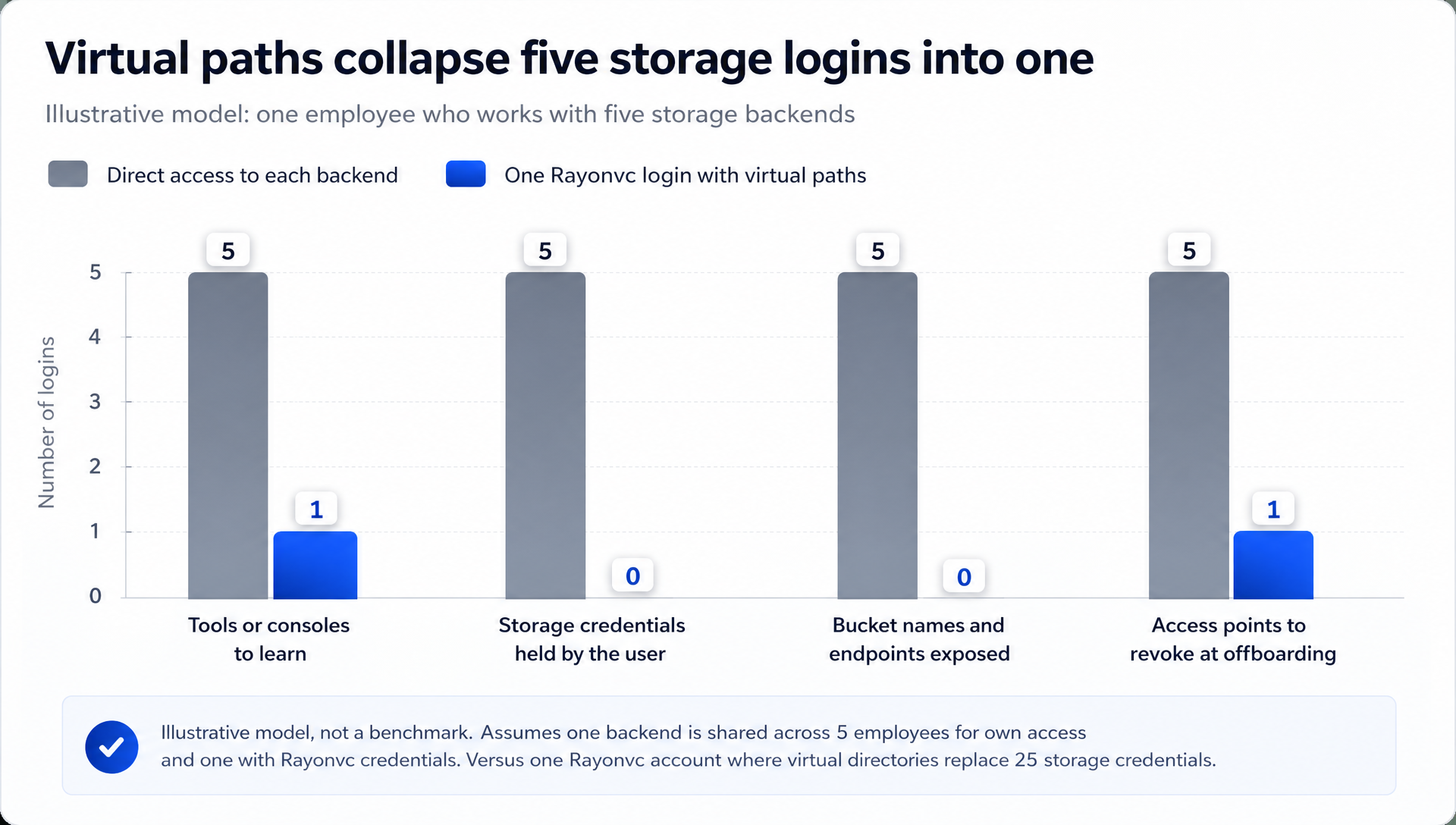
Figure 6: Illustrative model, not a benchmark — one employee working with five storage backends, with and without virtual paths.
• One interface instead of several. Users stop switching between cloud consoles, FTP clients and mapped drives. One login and one folder tree cover every backend they are allowed to reach.
• Keys stay with IT. Because storage credentials are held server-side, you do not hand S3 access keys or Azure accounts to end users. Offboarding means disabling one account, not hunting down five sets of keys.
• New storage without a redesign. Adding a backend is one storage entry and one virtual directory. Existing paths, scripts and user habits stay the same.
• Central permissions and quotas. Allowed and disabled paths, per-user permissions and storage caps are set in one admin portal. Releases since mid-2025 add a storage-threshold email alert (v8.1.8.4) and group storage alarm notifications (v8.1.8.6).
• A cleaner path to hybrid and multi-cloud. Moving a project from on-premises NAS to a cloud bucket becomes a change to what a virtual directory points to, not a retraining exercise for every user.
What should you check before rolling out multi-storage file transfer?
Check cloud egress costs, how cross-backend moves behave, how permissions are scoped per path and which product version your documentation describes.
A virtual path layer removes friction; it does not remove physics or billing. Before rollout, confirm these points:
• Egress charges still apply. Files read out of a public cloud bucket are billed by that provider as data transfer out. A transfer from /aws to /azure looks like a folder-to-folder move to the user, but AWS bills data transferred out of S3 to the internet beyond a 100 GB monthly free allowance — check your provider's data transfer pricing.
• Cross-backend moves are copies. Moving a file between two different storage systems means copying it to the target and removing it from the source, not a metadata rename. SFTPGo's documentation is explicit that renames across folders only work on the same storage. Confirm how your Raysync version handles large cross-backend moves before scripting them.
• Scope permissions per path, not per user. Decide which teams get which virtual directories and whether each is read-only, upload-only or full access. Use allowed paths for partners and contractors.
• Match docs to your version. Raysync's admin guide is labelled "Before Version 8180", while the latest listed release is v8.1.8.9 (23 September 2026). Menu names may differ in newer builds.
• Keep the audit trail in one place. One of the biggest wins of a single access layer is one log. Make sure the logs cover every virtual directory, and plan how you will export them for auditors.
How Raysync Enterprise handles multi-storage file transfer at scale
Raysync Enterprise combines the virtual path architecture with accelerated transfer, encryption and governance, so enterprises can reach every storage backend from one platform and move large files between them quickly.
Unifying storage is only half the job. When the file in /nas_projects is a 400 GB media package and the destination is a bucket on another continent, the transfer engine decides whether it arrives in minutes or hours. Raysync Enterprise is built for that case:
• Accelerated transfer. Proprietary UDP-based transport, with Raysync citing speeds of up to 10 Gbps and is 100× faster than FTP.
• Resilience. Automatic checkpoint resume, so an interrupted transfer continues where it stopped.
• Security. AES-256 encryption in transit and at rest, role-based access control and immutable audit trails.
• Identity. Integrations with Active Directory, OpenLDAP, Okta, OneLogin and Google Workspace.
• Storage reach. On-premises, cloud, hybrid and NAS environments, with cloud storage including AWS S3, Azure Blob, Backblaze and Wasabi.
• Compliance. Raysync Enterprise is HIPAA and TPN certified, and Raysync's managed file transfer page also lists ISO 27001.
• Predictable licensing. Licensed by bandwidth tier rather than per user, so every license includes unlimited users.
For teams that need scheduled replication rather than on-demand access, Raysync's enterprise file sync and share capabilities add sync tasks — administrators set direction, paths and frequency — across local, cloud and NAS storage.
Ready to put every storage backend behind one login? Request a Raysync Enterprise demo or trial and test virtual paths against your own S3, Azure, Google Cloud and on-premises storage.
Frequently asked questions
What is a virtual directory in file transfer?
A virtual directory is a folder name that users see in a file transfer tool, which the server maps to a real location on some storage backend. Users work with the friendly name, such as /aws, while the server handles the bucket, path and credentials behind it.
Which storage types does Raysync support for multi-storage file transfer?
Raysync supports local storage, Amazon S3, Azure Blob Storage, Google Cloud Storage and S3-compatible object storage, with Backblaze B2, Wasabi and Ceph listed as examples. Raysync Enterprise also supports NAS environments. Several backends can be configured at the same time.
Do users need cloud credentials to use Raysync virtual paths?
No. Administrators enter storage credentials once in the admin portal, and the server uses them when a user opens a virtual directory. Users sign in to Raysync and don't need bucket names, endpoints or access keys.
Can I move files between Amazon S3 and Azure Blob with Raysync?
Yes, users can work in an S3-backed folder and an Azure-backed folder in the same session, within the move and copy permissions an administrator grants. Because the data physically crosses between clouds, the source provider's egress charges apply; confirm with Raysync how large cross-backend moves are executed in your version.
Is multi-storage file transfer the same as multi-cloud sync?
No. Multi-storage file transfer gives people one place to access and move files across backends on demand. Multi-cloud sync keeps copies aligned on a schedule. Many enterprises use both: virtual paths for daily access, sync tasks for replication.
Does adding a new storage backend disrupt existing users?
No. An administrator adds the new storage, tests it and binds it to a new virtual directory. Existing virtual paths, permissions and scripts keep working, and users simply see one more folder.
How is access controlled for each virtual directory?
Access is controlled per user and per path. Administrators set permissions such as upload, download, delete and share, restrict users to allowed paths or block disabled paths, and can cap how much storage a user consumes in a space.
The bottom line
Enterprise data no longer lives in one place, and file transfer can no longer assume it does. Multi-storage file transfer puts local disks, NAS, Amazon S3, Azure Blob, Google Cloud Storage and S3-compatible storage behind one login and one folder tree, with credentials held centrally and permissions set per path.
Raysync does this through virtual paths — and because Raysync Enterprise pairs that access layer with UDP acceleration, checkpoint resume and AES-256 encryption, the files move quickly once users find them. If your teams still switch between consoles to reach their data, with a Raysync Enterprise demo and map your first storage backends to virtual paths.
You might also like

Industry news
July 24, 2020In the Internet market, more and more enterprises realize that innovative software and mobile applications can be used to gain or maintain valuable competitive advantages, and enterprises must try to integrate "business" with IT departments.

Industry news
June 11, 2020The stability of file transfer is fundamentally based on excellent transfer performance. Raysync Transmission is based on UDP transfer performance, breaking through the transfer defects of traditional FTP and HTTP.
Industry news
August 16, 2024Explore the ins and outs of FileZilla Pro Enterprise Server, from what it is to how to download it. Also discover top FileZilla alternatives like Raysync.