After logging in to the admin portal, click your account name in the upper‑right corner to enter the Personal Center. Here you can maintain your current account information, change your password, and personalize the interface.
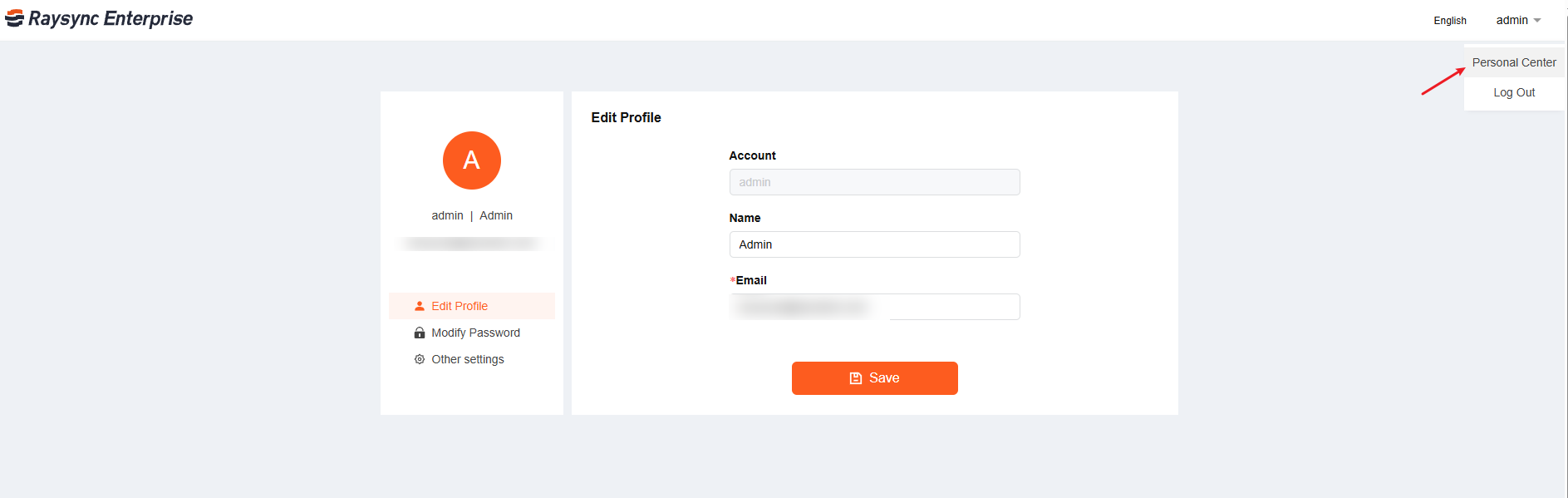
1. Edit Profile
Click “Edit Profile” in the left navigation bar.
-
Account: A built‑in, read‑only field that cannot be modified.
-
Name: Enter the administrator's display name (e.g., Admin).
-
Email: Required. Enter a valid email address. This email is essential for receiving system notifications (such as License expiration warnings and network anomaly alerts). Please ensure it is accurate.
Click the “Save” button at the bottom to complete the changes.
2. Modify Password
Click “Modify Password” in the left navigation bar.
-
Current Password: Enter your current password.
-
New Password: Enter the new password you want to set.
-
Confirm New Password: Re‑enter the new password for confirmation.
Click the “Confirm” button at the bottom. Once the system validates the input, your password will be changed successfully.
3. Other Settings
Click “Other Settings” in the left navigation bar.
Under Appearance, you can choose from the following three modes:
-
System: The interface color automatically matches your current operating system theme.
-
Light: The interface is fixed to the traditional light theme.
-
Dark: The interface is fixed to a dark theme, suitable for nighttime or low‑light environments.
The selected theme will be applied to the interface immediately.