1. Linux Server Deployment
Step 1: Unzip the installation package
# tar -zxvf raysync-hub-linux-8.8.8.8.tar.gz
Step 2: Start Server (Run as root)
# cd raysync-hub
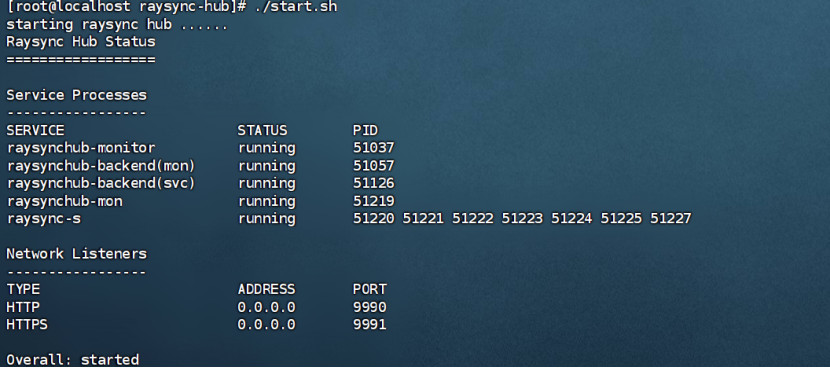
# ./start.sh
If the execution result displays Overall: started as shown below, the Raysync Hub service has been started successfully.
Other commonly used O&M commands:
-
- Stop service: ./stop.sh
- View service status: ./status.sh
- Collect server logs for the current day: ./collect-logs.sh
2. Windows Server Deployment
Step 1: Extract the console installation package to the target directory.
Step 2: Start service (Run as administraor)
Go to the raysync-hub directory and click Start.exe to start the service. (The program will automatically request UAC elevation. If a UAC prompt appears, enter the administrator password to start it.)
You can use Status.exe to view the running status, Stop.exe to stop the service, and CollectLogs.exe to collect logs for the current day.
3. Log in to the Console
Step 1: Open the login page
Access https://<Server IP>:9991 or http://<Server IP>:9990 in a browser.
Step 2: Login
Enter the account/email and password. The default account is admin. Obtain the initial password from AdminInitPwd in the installation directory, and click Log In.
- Initial administrator account: admin
- Initial administrator password:
Windows: After starting the service, open AdminInitPwd in the installation directory with Note(right-click) to view the password.
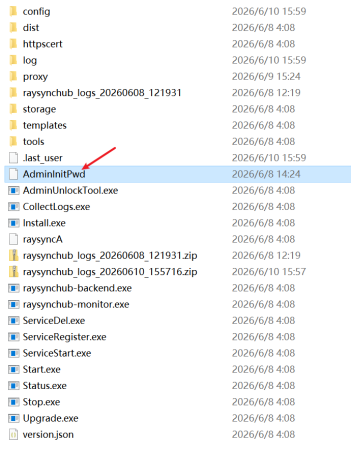
Linux: Run the following command on the server to view the password: cat AdminInitPwd

Step 3: C
When logging in for the first time, you must change the password. The system automatically redirects you to the mandatory new password setup page. You can enter the system after completing the setup.