User Roles
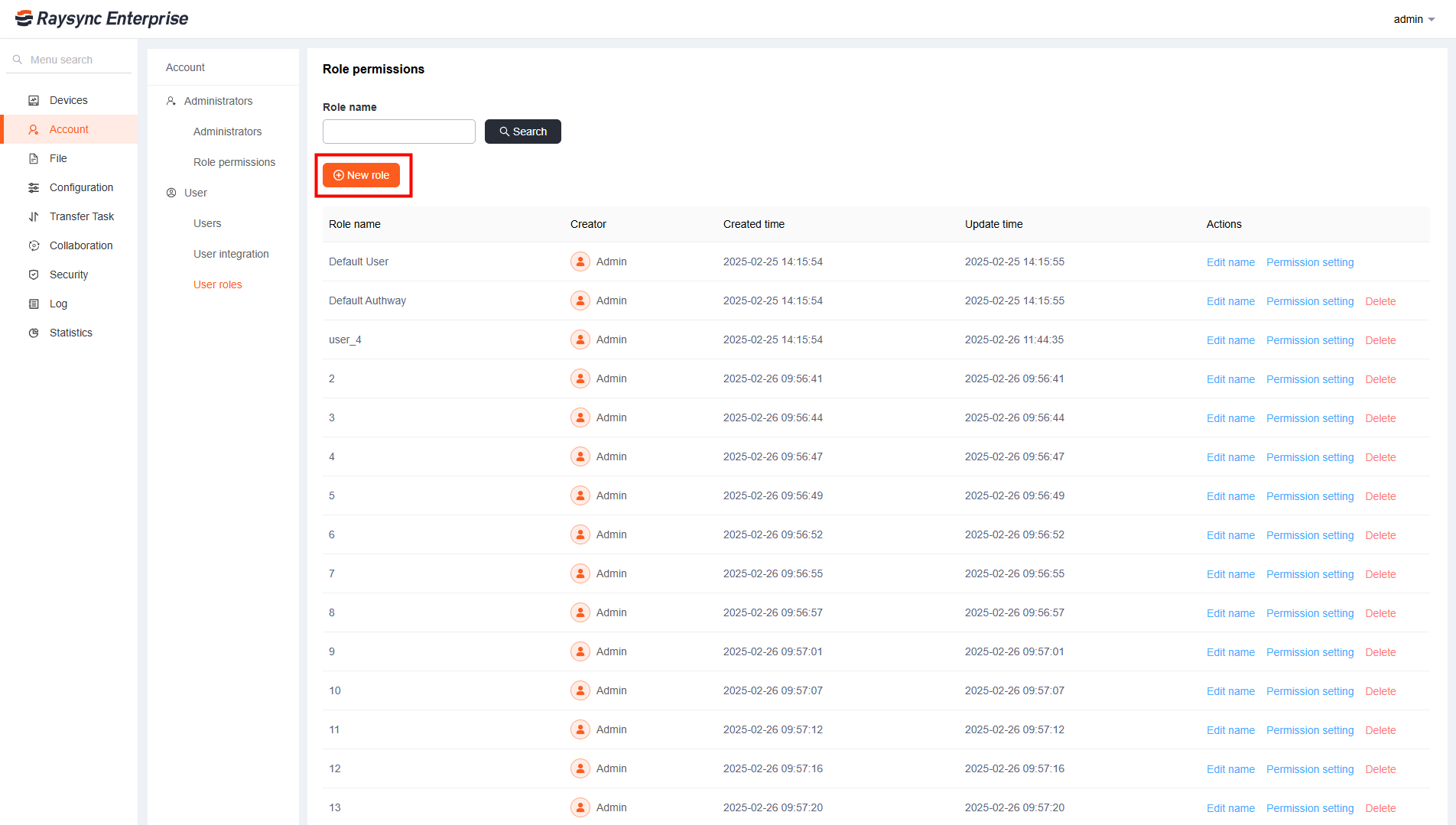
Create and manage user role permissions, then assign them to individual or multiple users.
-
New Role: Click to create a new user role
-
Permission Setting: Configure permissions for the created role
-
Assign Role: Specify the role when creating or editing users
Permission setting description
| Options | Function Description |
|---|---|
| When enabled, the User's file list does not display hidden files like start with ".", and hidden files cannot be transferred | |
| Maximum storage | Set the maximum storage for the user in the current space. When the used storage exceeds the set limit, it will no longer be able to store new files |
| Forbidden path | Restrict user access to specific directories. Sample 1: If the home directory is not set and the forbidden access path is test01/test02, the forbidden full path is: / system default storage path/uername/ test01/test02/. Samples 2: If set the home directory to /raysync/assets /, and forbidden access path is test01/test02, the forbidden full path is: /raysync/assets/test01/test02/. 2. Support wildcard Samples 1: If you want all directories with [test] to be inaccessible, please fill in [*test*] Samples 2: If you want all directories with [test] under the path [/bucket1/abc] to be inaccessible, please fill in [/]bucket1/abc/*test* |
| Allowed access path | Allowed access path Sample 1: If the home directory is not set and the allowed access path is test01/test02, the allowed full path is: / system default storage path/uername/ test01/test02/. Samples 2: If set the home directory to /raysync/assets /, and allowed access path is test01/test02, the allowed full path is: /raysync/assets/test01/test02/ |
| Permissions | User permissions. File list, download files, delete, rename, create folders, upload files, sync folders, move, copy, invite, share, Peer to Peer, Uzip |
| File upload limit | After enabling only upload new files, users can only upload newly added files, and cannot upload files with the same name. |
| Upload and download speed limit | Limit the upload and download speed of the user, the default speed is unlimited |
| Transfer priority |
Assign transfer priorities to all user roles. This can only be set when the server priority(Configure in Configuration-transfer) is enabled.Uses's transfer speeds are allocated based on priority and server Bandwidth , categorized as low, medium, and high. The actual bandwidth depends on the Inbound/Outbound Bandwidth of server. The user's bandwidth will be shared with their inviter/sharer. |
| Transfer file format | Transfer file format is divided into white list and black list. The whitelist is used to configure the file formats that the system allows to upload. Blacklist is used to configure the file formats that the system does not allow to upload. Multiple formats should be separated by ";", such as "txt;iso;mp4". |
| Transfer File Filtering | 1) Prohibit users from setting filtering criteria when creating synchronization tasks 2) Support transfer file (folder) blacklist and whitelist, meet the conditions of the file will be filtered or transmitted, support wildcard. For example, if files starting with test need to be filtered during transmission, enable the blacklist and enter test*. 3) Support to skip files whose file size exceeds the set size when transferring |
| Sync task frequency | When enabled, the frequency of all sync tasks will be in compliance with this setting, users cannot set the frequency when creating and editing sync tasks in the User Portal |
| User menu bar permissions |
|