Transfer Priority: How to Allocate Bandwidth for Critical Enterprise File Transfers
August 25, 2026
A 200 GB customer delivery is due in an hour. It's crawling. Nothing is broken — the link is healthy, the server is fine, and no one has misconfigured anything. The problem is that a nightly archive job, four staff members syncing project folders, and a partner uploading test data are all pulling from the same pipe, and your file transfer server is splitting bandwidth between them as if every byte carried the same business value.
It doesn't. In enterprise large file transfer, bandwidth stopped being a network resource the moment it started deciding which customer gets their files on time. Transfer Priority is the control that makes that explicit: it lets administrators assign High, Medium, or Low priority to user roles, then allocates transfer speed according to server capacity, role priority, and live transfer load — instead of handing every session an identical slice.
This guide covers what Transfer Priority does, the arithmetic behind why equal sharing hurts you, how to configure it in Raysync, and the mistakes that quietly cancel out the benefit.
TL;DR — Key takeaways
- Equal bandwidth sharing is a policy decision, not a neutral default. It treats an archive backup and a contractual customer delivery as equally important.
- Transfer Priority assigns High / Medium / Low to user roles, and the server allocates speed based on configured inbound/outbound bandwidth, role priority, and current load.
- In a modelled four-workload scenario on a 1 Gbps link, prioritised transfers finish 25% faster while low-priority archive jobs still clear inside an overnight window.
- Over-assigning High priority destroys the benefit — set 75% of roles to High and the advantage collapses to about 1.09×.
- Priority is not the same as a speed cap. A global speed limit slows everyone; priority decides who gets the headroom when everyone wants it at once.
- Weighted priority is standard practice across the category — IBM Aspera, FileCatalyst, and Raysync all implement proportional bandwidth sharing rather than flat first-come-first-served.
What is Transfer Priority?
Transfer Priority is a bandwidth scheduling feature that assigns a relative importance level — High, Medium, or Low — to each user role on a file transfer server, then allocates available transfer speed in proportion to those levels when multiple users transfer at the same time.
It is the file-transfer equivalent of Quality of Service (QoS) on a network. Where a router uses weighted fair queueing to give voice traffic a bigger share of a congested interface than bulk downloads (Cisco's CBWFQ implementation is the canonical example), Transfer Priority does the same thing one layer up: it arbitrates between people and business processes, not packet classes.
In Raysync, once the feature is enabled at the server level, priority is applied to all user roles with Medium as the default. The server then allocates transfer speed based on five inputs:
| Input | What it controls |
|---|---|
| Server inbound bandwidth | The ceiling for everything uploading to the server |
| Server outbound bandwidth | The ceiling for everything downloading from the server |
| User role priority | The weight each role carries when bandwidth is contended |
| Current transfer load | How many sessions are competing right now |
| Bandwidth sharing rules | How the remaining headroom is distributed |
The practical result: when the pipe is uncontended, everyone runs fast. When it's contended, the roles you flagged as business-critical keep their speed and the rest yield.
Why equal bandwidth sharing fails enterprise large file transfer
Default behaviour on most transfer servers is proportional-to-nobody: every active session claims roughly the same share of the link. That feels fair. It's actually a decision to let the least important job on your network set the pace for the most important one.
Take a 1 Gbps outbound link with four concurrent workload groups — a customer delivery, a production data sync, general staff downloads, and an overnight archive job. Under equal sharing, each gets 250 Mbps. The archive job, which nobody will look at until next quarter, takes exactly as much of your pipe as the delivery that's contractually due today.
Turn on weighted priority and the split changes:
.png)
Bandwidth allocation on a 1 Gbps outbound link, equal sharing versus Transfer Priority. Illustrative model using weights of 3 (High), 2 (Medium) and 1 (Low); actual allocation depends on configured server bandwidth, role priority, and live transfer load.
High-priority workloads gain 33%. Archive traffic gives up 56%. Nothing was added to the network — the same gigabit is simply pointed at the work that matters.
What that does to completion times
Bandwidth percentages are abstract. Delivery windows aren't. Applying the same split to realistic job sizes shows where the benefit actually lands:
.png)
Completion times for four concurrent workloads on the same modelled 1 Gbps link. High-priority jobs finish 25% sooner; the low-priority archive absorbs the trade-off and still completes off-peak.
| Workload | Size | Priority | Equal sharing | With Transfer Priority | Change |
|---|---|---|---|---|---|
| Customer delivery | 200 GB | High | 1.78 h | 1.33 h | −25% |
| Production data sync | 150 GB | High | 1.33 h | 1.00 h | −25% |
| Internal staff transfers | 300 GB | Medium | 2.67 h | 3.00 h | +12% |
| Archive & backup | 500 GB | Low | 4.44 h | 10.00 h | +125% |
Read the bottom row carefully, because it's the honest part of the story. Priority doesn't create bandwidth. The archive job pays for the delivery job's speed — it goes from a 4.4-hour run to a 10-hour run. That's a good trade only if a 10-hour overnight window is acceptable for archives. Deciding that consciously is the entire point of the feature.
Transfer Priority vs. speed limits vs. network QoS
These three controls get conflated constantly, and the difference determines whether you're solving your problem or just capping your own throughput.
| Control | What it does | What it doesn't do | Best used for |
|---|---|---|---|
| Global speed limit | Caps total server upload/download rate | Distinguish between users or jobs | Protecting other systems on a shared link |
| Per-user speed cap | Caps one account's rate | Free up unused bandwidth for others | Containing a known bandwidth hog |
| Transfer Priority | Weights role shares of live contended bandwidth | Increase total capacity | Deciding who wins when the pipe is full |
| Network QoS (DSCP/CBWFQ) | Prioritises packet classes at the router | Understand users, roles, or business context | Protecting latency-sensitive traffic like VoIP |
The key distinction: a speed limit is static, priority is dynamic. A capped account stays capped at 3 a.m. when the network is empty. A low-priority role runs at full tilt on an idle link and yields only when a higher-priority transfer shows up. That's the behaviour you want for backups, archives, and test accounts.
Network QoS remains complementary, not redundant. DSCP marking protects real-time traffic from your file transfers; Transfer Priority arbitrates within the file transfer allocation. Most enterprises need both.
How to configure Transfer Priority in Raysync
Configuration takes two steps at the platform level and one at the account level.
Step 1: Enable Transfer Priority in Transfer settings
Navigate to Admin Portal › Configuration › Transfer, find Transfer Priority, and enable it.

Enabling Transfer Priority in Admin Portal › Configuration › Transfer.
When you enable it, set Inbound Bandwidth and Outbound Bandwidth to match the server's real network conditions. This matters more than any other setting on the page, because Raysync uses these figures as the denominator for every allocation decision. Get them wrong and the scheduler is optimising against a fiction.
Configure them like this:
- Inbound bandwidth — the server's available upload-receiving capacity
- Outbound bandwidth — the server's available download-sending capacity
- Use measured capacity, not the theoretical maximum on the circuit contract
- Subtract headroom for any other business system sharing the same link
- Revisit the numbers after network changes, not just at initial setup
Once enabled, every user role has Transfer Priority active with Medium as the default.
Step 2: Set priority on each user role
Go to Admin Portal › Account › User › User Roles, select a role, and click Permission Setting.
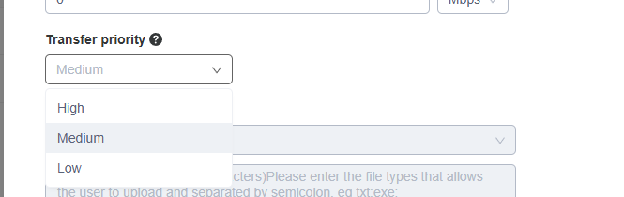
Assigning High, Medium, or Low priority under User Roles › Permission Setting.
Assign High, Medium, or Low. Per Raysync documentation, this option only appears when server-level Transfer Priority is enabled under Configuration › Transfer — if the field is greyed out, Step 1 wasn't completed.
Step 3: Assign roles to users and monitor
Assign the appropriate role when creating or editing each user. End users change nothing about how they work: they upload, download, sync, and share as usual, and the server schedules bandwidth behind them.
After rollout, watch four things:
- Whether high-priority users actually see smoother transfer performance
- Whether low-priority jobs still complete inside their acceptable window
- Whether the configured inbound/outbound bandwidth still reflects reality
- Whether business roles have drifted and need different priority levels
Review the settings on a schedule — quarterly is a reasonable cadence — and after any change to teams, projects, or traffic patterns.
Which roles should get which priority
Start from the business consequence of a slow transfer, not the seniority of the person running it. A production data-sync service account often deserves higher priority than a management account that mostly downloads reports.
| Priority | Typical roles | Rationale |
|---|---|---|
| High | Customer delivery teams, production data pipelines, live project delivery, time-boxed post-production handoffs | Missing the window has direct revenue or contractual consequences |
| Medium | General staff, most departments, standard partner accounts | The default baseline — the work matters but isn't deadline-critical to the hour |
| Low | Archive uploads, routine backups, test and sandbox accounts, non-time-sensitive external transfers | Completion matters; completion speed doesn't |
Six best practices for role-based bandwidth allocation
1. Prioritise by business impact, not org chart. The question isn't "who's senior?" It's "what breaks if this transfer is four hours late?"
2. Keep High priority scarce. This is the mistake that silently wastes the whole feature. Because priority is proportional, every additional High role dilutes the advantage the existing High roles hold:
.png)
Priority dilution: as more roles are set to High, the bandwidth advantage of any single High-priority transfer decays toward parity. Illustrative model of proportional weighted sharing (High = 3, Medium = 2) across a fixed pool of contending transfers.
At 5% of roles on High, a prioritised transfer holds roughly a 1.46× advantage. At 40% it's down to 1.25×. At 75% it's 1.09× — statistically indistinguishable from no priority scheme at all, with all the administrative overhead of having one. Keeping High to roughly 10–15% of contending roles preserves meaningful separation.
3. Use Medium as the baseline and justify every deviation. Raysync defaults to Medium for a reason. Change a role only when you can state the business case in one sentence.
4. Push non-urgent traffic to Low deliberately. Archives, backups, test accounts, and bulk external transfers belong here. Low doesn't mean throttled — on an idle link they run at full speed. It means they're first to yield.
5. Base bandwidth settings on measured capacity. When configuring inbound and outbound bandwidth, account for actual available throughput, peak business hours, other systems on the link, your real upload/download traffic ratio, and expected concurrency. Configuring 1 Gbps on a circuit that delivers 600 Mbps under load produces allocations that don't hold up.
6. Monitor, then adjust. Track transfer speed, task volume, server load, and user reports after enabling priority. If high-priority transfers are still slow, check three things in order: are the server bandwidth figures too low, is total network capacity genuinely insufficient, and have too many roles crept onto High?
How the rest of the category handles this
Weighted transfer prioritisation isn't a niche idea — it's how serious file transfer platforms have handled contention for years, which is useful validation if you're building the internal case for turning it on.
IBM Aspera exposes it through transfer policies. Its documentation describes high as targeting roughly twice the bandwidth share of fair, and low as targeting about a tenth — with a worked example showing three concurrent transfers splitting 60 Mb/s equally at 20 Mb/s each until one is switched to high, at which point it takes 30 Mb/s (IBM Aspera, Transfer Policies Explained).
FileCatalyst Direct implements it at both user and task level: administrators set a priority on individual server users, where "setting a user's priority to Low gives the user a smaller portion of the available bandwidth and vice versa for high," and HotFolder tasks carry their own priority (Fortra, Prioritizing Transfers in FileCatalyst Direct).
Signiant takes a different route, documenting bandwidth ceilings and floors plus time-of-day throttling rather than role-based priority levels (Signiant Developer, Bandwidth Management).
The pattern is consistent: proportional weighting beats flat sharing, and role-level control beats per-job hand-tuning because it survives staff turnover and scales without an administrator in the loop.
Where Raysync Enterprise fits
Transfer Priority solves allocation. It doesn't solve the ceiling — if the pipe itself underperforms, prioritising traffic inside it just redistributes a shortage.
That's the gap the Raysync Enterprise plan closes. It pairs role-based bandwidth governance with proprietary UDP-based WAN acceleration and intelligent UDP/TCP switching, so the total throughput available to prioritise stays near line rate even on high-latency, lossy international routes where standard TCP collapses. Peer-to-peer transfer removes unnecessary relay hops, and checkpoint resume with transfer verification means a dropped connection resumes instead of restarting a multi-hundred-gigabyte job.
The governance layer matters just as much for priority schemes, because priority is only as good as your role model. Raysync Enterprise provides centralized administration with role-based access control and audit logs, AES-256 encryption in transit and at rest, TLS transmission with support for custom TLS and client certificates, secure sharing links, and REST API, SDK, CLI, and enterprise identity integrations. It is TPN certified, a member of the DPP, and HIPAA and ISO 27001 certified. It also includes AI-agent integration for natural-language remote file operations. Pricing is customized to deployment, and a free trial can be requested through the Raysync website.
Organisations running transfer infrastructure across multiple sites, data centers, or regions can extend the same thinking with Raysync Hub, a centralized data-transfer management console with per-node bandwidth controls, real-time transfer monitoring, recurring transfer scheduling, and detailed operations logs. Hub is available at $6,000 per year including six online nodes, with additional nodes at $600 per node per year and a seven-day free trial.
As an international, Singapore-headquartered brand, Raysync is built for multinational deployments — exactly the environments where dozens of roles across several regions contend for the same finite transfer capacity.
Frequently asked questions
What is transfer priority in file transfer software?
Transfer priority is a bandwidth scheduling control that assigns relative importance levels — typically High, Medium, and Low — to users or roles, then allocates available transfer speed in proportion to those levels when several transfers run at once. It ensures business-critical transfers get a larger share of a contended link instead of an equal one.
How is transfer priority different from a bandwidth limit?
A bandwidth limit is a static cap that applies whether or not the network is busy. Transfer priority is dynamic: it only takes effect when transfers compete for the same bandwidth. A low-priority role can run at full speed on an idle server and yields only when a higher-priority transfer starts.
Does enabling transfer priority slow down other users?
Only under contention. When total demand exceeds configured server bandwidth, lower-priority roles receive a smaller share so higher-priority ones can keep their speed. When there's spare capacity, everyone runs normally. In the modelled scenario above, a low-priority 500 GB archive extended from 4.4 to 10 hours — still comfortably inside an overnight window.
How many roles should I set to High priority?
Keep it small — roughly 10–15% of the roles that actually contend for bandwidth. Because allocation is proportional, the advantage held by High-priority transfers shrinks as more roles are promoted. Set most roles to High and the effective advantage falls toward 1.0×, which is the same as having no priority scheme.
What inbound and outbound bandwidth values should I configure?
Use measured capacity under real load, not the theoretical maximum on your circuit contract, and subtract headroom for other business systems sharing the link. Inbound corresponds to upload-receiving capacity, outbound to download-sending capacity. These figures are the basis for every allocation decision the server makes.
Do end users need to do anything after transfer priority is enabled?
No. Users upload, download, sync, and share exactly as before. Priority is applied server-side through the role assigned to their account, and bandwidth scheduling happens in the background with no client-side action.
Can transfer priority replace network QoS?
No — they operate at different layers and solve different problems. Network QoS (DSCP marking, weighted fair queueing) protects latency-sensitive traffic such as VoIP from bulk data at the router. Transfer priority arbitrates between users and business processes inside the file transfer allocation. Most enterprises run both.
Does transfer priority make transfers faster overall?
Not by itself. It redistributes existing capacity rather than adding any. To raise the total available throughput — particularly on long-distance or lossy international links — you need transport-layer acceleration such as UDP-based WAN acceleration underneath the priority scheme.
The bottom line
Equal bandwidth sharing isn't neutrality. It's an unexamined policy that lets a routine archive job compete on equal terms with a contractual customer delivery, and it costs you exactly when the network is busiest — which is exactly when the stakes are highest.
Transfer Priority replaces that default with an explicit decision. Enable it at the server level, set inbound and outbound bandwidth to measured reality, weight your roles by business impact, and keep High priority scarce enough to mean something. The result isn't more bandwidth; it's bandwidth pointed at the work that pays for it.
For enterprises running large file transfer across departments, partners, and regions, the Raysync Enterprise plan combines that role-based governance with UDP-based acceleration, so there's more capacity to allocate in the first place. Request a free trial through the Raysync website and test it against your busiest transfer window.
Sources
- IBM Aspera Support — Transfer Policies Explained (bandwidth policy ratios for high, fair, and low)
- Fortra / GoAnywhere — Prioritizing Transfers in FileCatalyst Direct (user-level and task-level priority)
- Signiant Developer — Bandwidth Management (bandwidth ceiling, floor, and time-of-day throttling)
- Cisco — QoS: Congestion Management Configuration Guide, Configuring Weighted Fair Queueing (weighted fair queueing as the QoS precedent)
- Site24x7 — Essential bandwidth allocation strategies for network administrators (critical-application prioritisation and traffic shaping)
- Raysync Enterprise — High-Speed Large File Transfer
- Raysync Hub — Centralized Data Transfer Management
- Raysync Support — Configuration documentation
You might also like

Industry news
July 3, 2025Explore the DPX file format—its structure, technical specs, and best practices for handling large sequences efficiently in post-production workflows.
![[2025] Well Fixed “Syncthing Slow” Issue](http://images.ctfassets.net/iz0mtfla8bmk/4eodFef7F5CB371TTu0K3P/d9d920304615f0e4a881f67d5c1cdef9/syncthing-slow.png)
Industry news
March 7, 2025Is your Syncthing slow? You're not alone! Discover common causes and simple fixes to boost your sync speeds.

Industry news
August 29, 2024Discover the top 5 enterprise secure FTP solutions to elevate your business.